
Get the app
Put AlleyPots on your phone, tablet or PC. It takes about a minute.
✓ You're in the AlleyPots app already. These steps are for another phone or PC.
One tap: adds AlleyPots to your home screen, like any other app.
✓ Installed
Open AlleyPots from your home screen and enter your passcode once.
Setting up a phone? Point its camera at this code to open this page there.
Open this page in Safari first
Add to Home Screen works in Safari, the iPhone's own browser (the blue compass). Copy the link, open Safari and paste it in the address bar.
Use Safari (the blue compass icon). Other browsers may not offer Add to Home Screen.
-
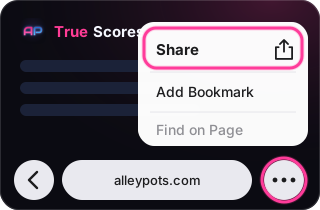
Tap Share At the bottom of Safari, tap ••• and then Share. On an iPad, the Share button is at the top right. On older iPhones, tap the Share button right away.
-
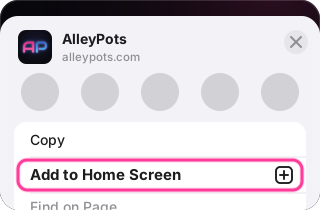
Tap Add to Home Screen Don't see it? Scroll down the list, or tap More.
-
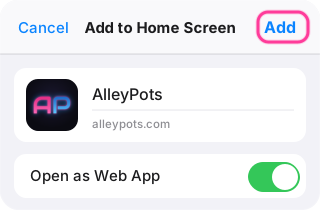
Tap Add Leave Open as Web App switched on.
-
Open it and enter your passcode Tap the AlleyPots icon on your Home Screen. Type the league passcode once and you're set. Don't have it? Ask the league organizer.

Your browser is showing the desktop version of websites. That's fine: the steps below still work.
In Samsung Internet
-
Tap ≡ The menu button: bottom right on a phone, top right on a tablet. See an install icon ⤓ in the address bar? Tap that instead and skip to step 3.
-
Tap Add page to › Home screen On some versions it's Add to Home screen or Install. Not there? Close any Secret mode tab and open this page in a normal tab.
-
Tap Add AlleyPots appears on your home screen.
In Chrome
-
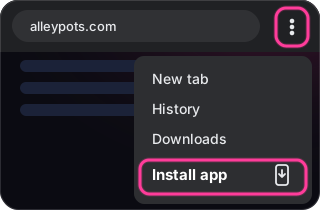
Tap ⋮ The menu button at the top right of Chrome.
-
Tap Install app, then Install On some phones and tablets it's called Add to Home screen.
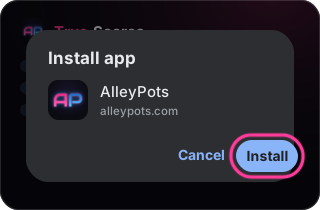
Another browser? Look in its menu for Install or Add to Home screen, or open this page in Chrome or Samsung Internet.
-
Open it and enter your passcode Tap the AlleyPots icon on your home screen. Type the league passcode once and you're set. Don't have it? Ask the league organizer.
The PC version is for Windows. On a Mac or Chromebook, just use AlleyPots in the browser: open it here.
Download for WindowsAlleyPots-Windows.zip-
Extract it In your Downloads, right-click AlleyPots-Windows.zip › Extract All… › Extract.
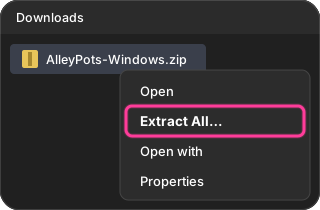
-
Double-click Start AlleyPots It's in the AlleyPots folder that opens. If Windows says Windows protected your PC, click More info › Run anyway.
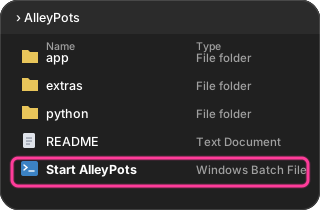
-
That's it AlleyPots opens in your browser and puts a AlleyPots icon on your Desktop. Next time, just double-click that icon. No passcode needed on the PC.
Browser warning, updates, moving the folder
- “Isn't commonly downloaded”? Choose Keep (in Edge: … › Keep › Keep anyway). AlleyPots isn't signed by Microsoft, so browsers are careful with it.
- Updates install themselves: when there's a new version, the black AlleyPots window asks Update now? [Y/N]. Type Y. Your saved scores are never touched.
- Keep the whole AlleyPots folder together (Documents is a good place). Moved it? Start it once from the new place and the Desktop icon follows.